The steps for turning on captions are simple, but the controls can look different depending on your device. You may be using Prime Video on a smart TV, Fire TV Stick, mobile phone, tablet, computer, Roku, or game console.
This guide explains how to turn on closed caption on Prime Video across common devices. It also covers how to change the caption language, adjust the text appearance, and fix common caption problems. Captions must be available for the title you are watching, and supported features can vary by device and content.
How to Turn On Closed Caption on Prime Video
The fastest way to enable captions is to open the playback menu while your video is playing.
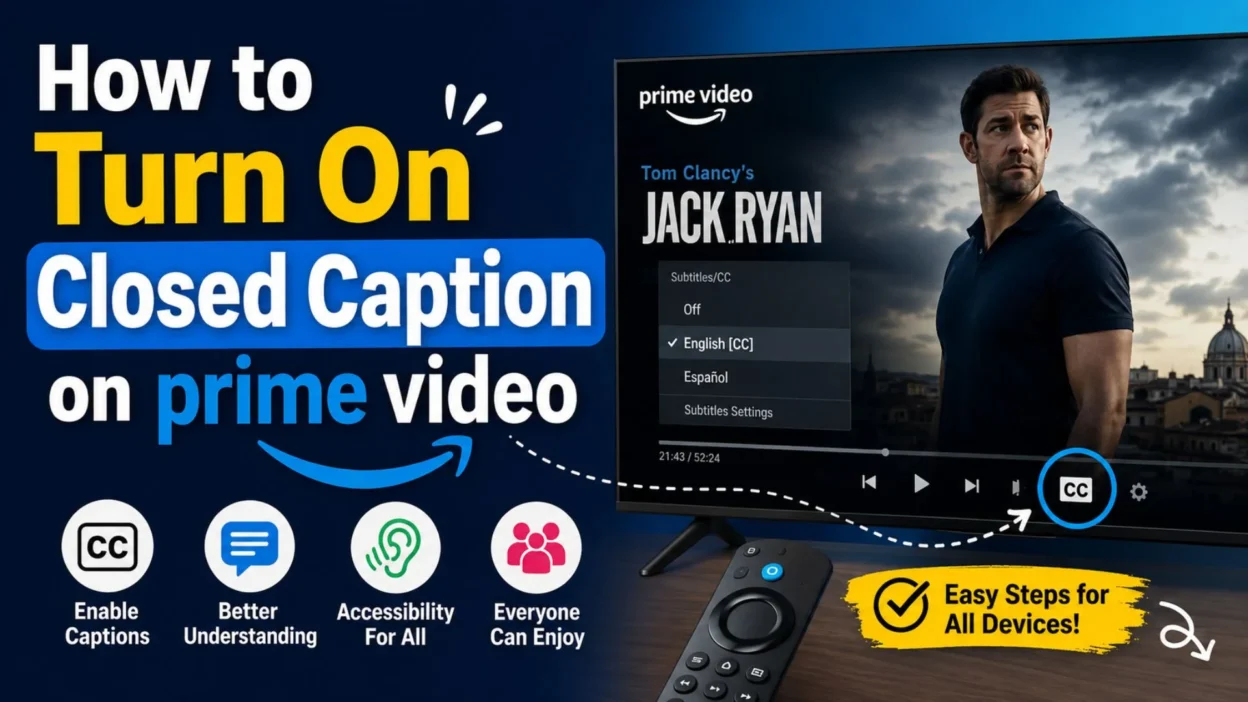
During playback, look for the Subtitles, CC, or Closed Captions icon. The icon may look like a small speech box or a rectangle with text inside.
- Start the movie, show, or episode you want to watch.
- Tap the screen or press a button on your remote to display the playback controls.
- Select the Subtitles or CC icon.
- Choose the available caption language.
- Resume playback and check that the text appears on the screen.
If you do not see a caption icon, the title may not offer subtitles or closed captions in your selected language. Prime Video explains that caption availability depends on the title and the device being used.
Turn On Closed Caption on Prime Video on a Smart TV
Smart TV controls can vary by brand, but the general process is similar.
Open Prime Video on your television and begin playing the selected title. Then use your remote to open the playback menu.
- Press the Select, OK, or center button on your remote.
- Move to the Subtitles or CC icon.
- Open the subtitle menu.
- Select the language you want to use.
- Choose On if the menu shows an on or off option.
Some smart TVs let you select subtitles from the title’s information page before playback begins. On supported devices, you may need to press Up and then move right to reach the subtitle options.
Turn On Captions on Fire TV or Fire TV Stick
Fire TV and Fire TV Stick include a subtitle option inside the playback controls.
Follow these steps while the video is playing:
- Start the movie or episode.
- Press the Menu button on your Fire TV remote.
- Select Subtitles.
- Choose the current subtitle setting, which may show as Off.
- Select an available language to turn captions on.
You can also check the title details before watching. Look for the Subtitles section to see whether the movie or show supports captions.
Turn On Closed Caption on Prime Video on Android
The Prime Video app supports closed captions on Android devices. The menu may appear after you tap the video.
- Open the Prime Video app.
- Play the movie or show.
- Tap the screen to display the controls.
- Select the CC or Subtitles icon.
- Choose your preferred language.
- Tap the video to continue watching.
If the caption menu does not appear, try pausing the video first. You can also rotate the phone or tablet if the playback controls are difficult to see.
Turn On Closed Caption on iPhone or iPad
You can enable captions in the Prime Video app on iPhone and iPad.
- Open Prime Video and play a supported title.
- Tap the screen once.
- Find the Subtitles or CC icon.
- Select the caption language.
- Return to the video.
Prime Video lists closed captions as a supported feature on iOS devices. However, the available languages and accessibility options can differ between titles.
Turn On Captions on a Computer
You can turn on captions when watching Prime Video in a web browser or through the Prime Video app for Windows or macOS.
- Open Prime Video on your computer.
- Start playing the selected title.
- Move your mouse over the video.
- Select the CC or Subtitles icon.
- Choose the language you want to display.
Prime Video also provides a keyboard shortcut for computers. Press C to turn subtitles or captions on and off or to switch between available subtitle languages.
Turn On Closed Caption on Roku
Roku devices may use their own accessibility settings for captions.
To change the Roku caption setting:
- Press the Home button on your Roku remote.
- Open Settings.
- Select Accessibility or Captions.
- Open Captions mode.
- Choose when captions should appear.
You can select options such as captions being off, on, or appearing during replay, depending on the Roku model and software version. Roku caption settings can affect supported streaming apps, including Prime Video.
Turn On Captions on Apple TV
Apple TV may use a different subtitle process from other streaming devices. Start by playing the Prime Video title and opening the playback controls.
- Play the movie or episode.
- Use the Apple TV remote to display the playback menu.
- Look for the Subtitles or CC option.
- Select the available caption language.
- Continue watching with captions enabled.
If the Prime Video menu does not show the option, check the caption settings on Apple TV. Prime Video notes that Apple TV may require alternate steps for managing subtitles.
Turn On Captions on a Game Console
Prime Video is available on supported game consoles, and captions can usually be enabled during playback.
- Open Prime Video on the console.
- Start playing a supported title.
- Press the controller’s select or enter button to display playback controls.
- Find the Subtitles or CC icon.
- Select the available language.
The exact button depends on the console and controller. If you cannot find the playback menu, pause the video and check the controls shown on the screen.
How to Change the Caption Language
Prime Video may offer more than one subtitle or caption language for a title. You can change the language from the same menu used to turn captions on.
- Start playing the title.
- Open the playback controls.
- Select the Subtitles or CC icon.
- Choose another available language.
- Return to the video.
The available language options depend on the movie, show, region, and device. If your preferred language is missing, the title may not include that language.
How to Change Caption Size and Appearance
Some devices allow you to change how captions look on the screen. Available options may include text size, text color, background color, or caption presets.
To check these settings:
- Open a title that supports captions.
- Display the playback menu.
- Select Subtitles Settings if the option appears.
- Adjust the text size or color.
- Save the changes if your device asks you to do so.
Not every device supports the same caption controls. Some settings may need to be changed through the device’s accessibility menu instead of the Prime Video app.
What Is the Difference Between Subtitles and Closed Captions?
Subtitles usually show spoken dialogue. Closed captions may include dialogue along with important sounds and audio information.
For example, closed captions may describe:
- A doorbell ringing.
- Music playing.
- Someone laughing.
- A phone vibrating.
- A character speaking off-screen.
The exact caption style depends on the title and the caption file provided with it. Prime Video uses the terms subtitles and captions in its accessibility settings, so you may see either label on your device.
Why Are Closed Captions Not Showing?
If you turned captions on but cannot see them, several simple issues may be responsible.
The Title Does Not Support Captions
Not every movie, show, or live program includes the same accessibility features. Check the title details for a CC or subtitle symbol.
Captions Are Available in Another Language
The title may offer captions, but not in the language you selected. Open the subtitle menu and review the available options.
The Playback Menu Is Hidden
Tap the screen, move the mouse, or press the select button on your remote. The caption icon usually appears only after the playback controls are visible.
The App Needs an Update
An outdated Prime Video app may not display controls correctly. Update the app through your device’s app store, then try again.
The Device Has Its Own Caption Settings
Roku, Apple TV, smart TVs, and game consoles may manage some caption settings through their own accessibility menus. Check the device settings if the Prime Video controls do not work.
How to Fix Prime Video Captions That Are Too Small
If captions are difficult to read, check whether your device offers subtitle appearance settings.
You may be able to:
- Increase the text size.
- Change the text color.
- Add a background behind the words.
- Increase contrast.
- Select a caption preset.
- Adjust the device’s accessibility settings.
A darker background and larger text can make captions easier to read, especially in bright scenes or scenes with lots of movement.
How to Turn Captions Off on Prime Video
Turning captions off uses nearly the same steps as turning them on.
- Start playing the video.
- Open the playback controls.
- Select the CC or Subtitles icon.
- Choose Off.
- Return to the video.
On Fire TV, you can open the subtitle menu with the Menu button on the remote and select the off option. On Roku, you may need to change the caption mode through the device’s accessibility settings.
Frequently Asked Questions About How to Turn On Closed Caption on Prime Video
How do I turn on closed caption on Prime Video?
Play a supported title, open the playback controls, select the CC or Subtitles icon, and choose an available language.
Why can’t I find the CC button on Prime Video?
The playback controls may be hidden. Tap the screen, move your mouse, or press the select button on your remote. If the icon still does not appear, the title may not support captions.
How do I turn on captions on Prime Video on my TV?
Start the video, open the playback menu with your remote, select Subtitles or CC, and choose the language you want.
How do I enable subtitles on Fire TV Stick?
Press the Menu button while the video is playing. Select Subtitles, then choose an available language instead of Off.
Can I use closed captions on the Prime Video mobile app?
Yes. Prime Video supports closed captions on supported Android and iOS devices. Tap the video while it is playing, select the caption icon, and choose a language.
How do I turn on captions on Prime Video using a keyboard?
On a computer, press C while watching Prime Video to turn captions on or off or switch between available caption languages.
Can I change the size of Prime Video captions?
Some devices allow you to adjust caption size, color, and other text settings. The available controls depend on your device and the title.
Why does Prime Video have subtitles but no closed captions?
Some titles may offer dialogue subtitles without full closed captions. Check the available options for the specific movie or show.
Can I turn captions on for every Prime Video title?
You can enable captions whenever they are available, but not every title includes the same caption languages or accessibility features.
How do I turn off closed captions on Prime Video?
Open the playback controls, select the CC or Subtitles icon, and choose Off. On some devices, you may need to change the setting through the device’s accessibility menu.
Conclusion
Learning how to turn on closed caption on Prime Video is easy once you know where the playback controls are located. In most cases, you only need to start the video, open the playback menu, select the CC or Subtitles icon, and choose a language.
The exact steps may differ on a smart TV, Fire TV Stick, mobile phone, computer, Roku, Apple TV, or game console. If captions are missing, check whether the title supports them and review your device’s accessibility settings.
You can also adjust caption size, color, and background on supported devices. These changes can make dialogue easier to follow and improve the viewing experience. If the caption option still does not appear, update the Prime Video app and try another supported title.

I am Ethan Miles, a digital creator and caption enthusiast who loves turning simple moments into powerful words. I specialize in crafting creative, trendy, and engaging captions that help your posts stand out. At Captionestry, I focus on delivering fresh ideas, relatable expressions, and scroll-stopping content for every mood and moment. I’m passionate about social media culture, photography, and the art of storytelling through short, impactful lines.