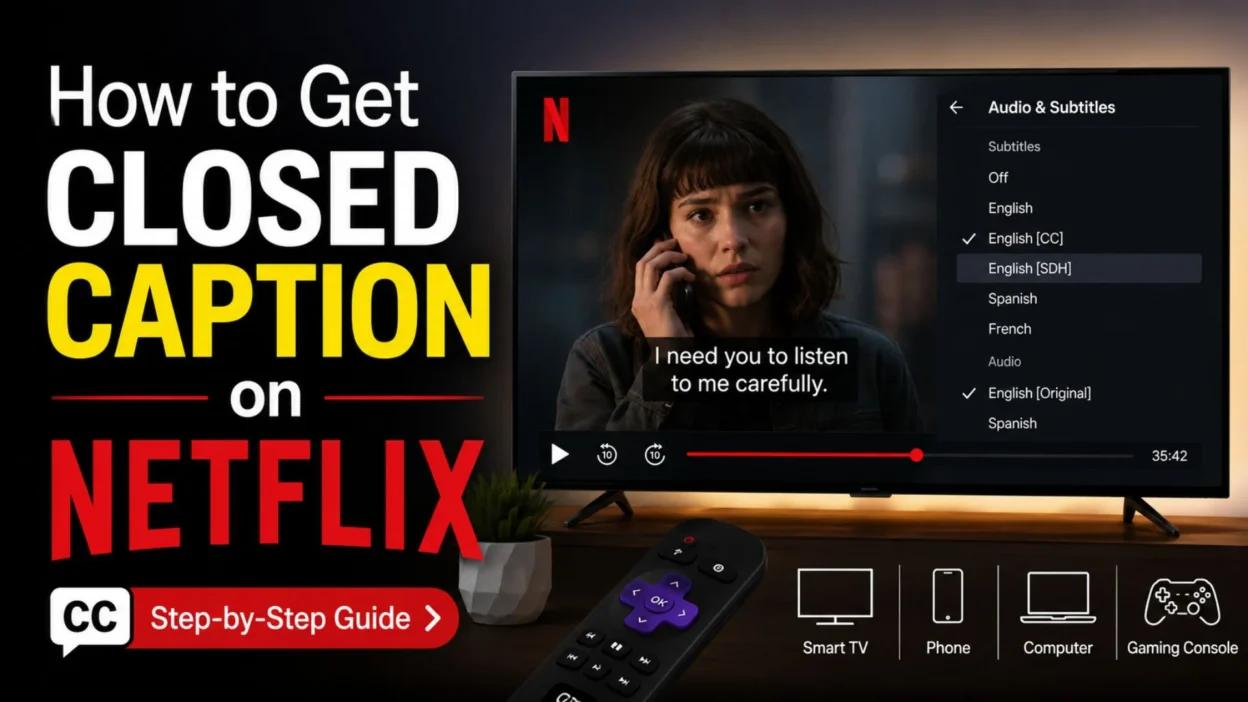
If you are wondering how to get closed caption on Netflix, the process is usually simple. Start a show or movie, open the playback controls, and select Audio & Subtitles. The exact button may look different on a phone, computer, smart TV, or streaming device.
This guide explains how to turn captions on, choose the right language, adjust their appearance, and troubleshoot common problems. It also explains why some titles may not offer the caption option you expect.
How to Turn On Closed Captions on Netflix
The quickest method is to open the subtitle menu during playback. You do not usually need to change your account settings first.
- Start playing the show or movie you want to watch. ▶️
- Open the playback controls on your device. 🎬
- Select Audio & Subtitles. 💬
- Choose an available subtitle or caption language. 🌐
- Resume playback and check that the text appears. ✅
Netflix uses the same general process across many devices, although the way you open the controls varies.
How to Get Closed Caption on Netflix on a Phone or Tablet
Netflix provides subtitle controls in its mobile app. These steps apply to many Android phones, iPhones, and tablets.
- Open the Netflix app. 📱
- Start playing a show or movie. ▶️
- Tap the screen to display the playback controls. 👆
- Tap Audio & Subtitles. 💬
- Select your preferred caption language. 🌍
- Tap outside the menu to return to the video. 🎥
If you cannot find the option, make sure the video is playing and that you have tapped the screen. The controls may disappear when playback continues.
How to Change Caption Appearance on Android
Android users can adjust the appearance of Netflix subtitles through the profile settings in the app.
- Open Netflix and tap My Netflix. 📱
- Tap the profile name at the top. 👤
- Select Manage Profiles. ⚙️
- Choose the profile you want to edit. 📝
- Tap Subtitle Appearance. 💬
- Adjust the available appearance settings. ✨
Netflix says these mobile appearance changes apply to titles played on the Android mobile device.
How to Get Closed Caption on Netflix on a Computer
You can turn on captions while watching Netflix in a supported web browser.
- Open Netflix in your browser. 💻
- Start playing a show or movie. ▶️
- Move your mouse over the video to show the controls. 🖱️
- Select Audio & Subtitles. 💬
- Choose the language you want. 🌐
- Click the video to continue watching. 🎬
If you are watching on a Chromebook, Windows computer, or Mac, the subtitle menu is part of the Netflix playback controls.
How to Change Subtitle Appearance on a Computer
Netflix also lets you change the look of captions through your profile settings.
- Open your Netflix account in a web browser. 🌐
- Go to Profiles and select your profile. 👤
- Choose Subtitle appearance. 💬
- Adjust the available font, size, shadow, or background settings. ✨
- Select Save. 💾
- Open Netflix again to watch with the updated appearance. ▶️
Some appearance options may vary by country, language, or device.
How to Turn On Captions on a Smart TV
Smart TVs use a remote control to open the subtitle menu. The exact button depends on the television and Netflix app version.
- Open Netflix on your smart TV. 📺
- Start playing a show or movie. ▶️
- Press the up or down arrow on your remote. 🎮
- Select Audio & Subtitles if it appears. 💬
- Choose the available caption language. 🌍
- Return to playback. ✅
On some TVs, the language options appear at the bottom of the screen without the Audio & Subtitles icon.
How to Change Caption Appearance on a Smart TV
Some supported TV devices offer subtitle appearance settings directly in the playback menu.
- Start playing a title on Netflix. 📺
- Pause the video. ⏸️
- Open the player controls. 🎮
- Select Settings if available. ⚙️
- Choose the available size or style options. ✨
- Resume playback. ▶️
Not every TV supports the same appearance controls. Older or unsupported devices may use the default caption style.
How to Get Closed Caption on Netflix on Roku
Roku devices use the Netflix playback menu to select subtitles and captions.
- Open Netflix on your Roku device. 📺
- Play the show or movie. ▶️
- Press the appropriate arrow on your remote to open playback controls. 🎮
- Select Audio & Subtitles. 💬
- Choose the available language. 🌐
- Return to the video. ✅
Roku TV supports Netflix subtitle and alternate-audio features on supported devices, but available options can vary by title.
How to Get Closed Caption on Netflix on Apple TV
Apple TV users can open Netflix’s subtitle menu while a title is playing.
- Open the Netflix app on Apple TV. 📺
- Start playing a show or movie. ▶️
- Swipe up or press the up arrow on the Apple TV remote. 🎮
- Select Audio & Subtitles. 💬
- Choose the available caption language. 🌍
- Resume playback. 🎬
Netflix lists Apple TV as a supported device and provides subtitle controls through the playback menu.
How to Get Closed Caption on Netflix on Fire TV
Fire TV users can access captions through the Netflix playback controls.
- Open Netflix on your Fire TV. 📺
- Start playing a title. ▶️
- Use the remote to open the playback controls. 🎮
- Select Audio & Subtitles. 💬
- Choose your preferred caption language. 🌐
- Return to the video. ▶️
If the menu looks different, look for the subtitle or speech-bubble icon. Netflix notes that the available languages depend on the title and device.
How to Get Closed Caption on Netflix on a Gaming Console
Netflix is available on supported PlayStation and Xbox consoles. Captions are selected through the playback controls.
- Open Netflix on your console. 🎮
- Start playing a show or movie. ▶️
- Open the playback controls with your controller. 🕹️
- Select Audio & Subtitles. 💬
- Choose an available language. 🌍
- Resume watching. 🎬
The exact controller button depends on the console and app interface.
How to Choose SDH Closed Captions on Netflix
Some viewers want more than spoken dialogue. SDH captions can include descriptions of sounds and other audio information.
- Start playing a title on Netflix. ▶️
- Open Audio & Subtitles. 💬
- Look for a language marked SDH when available. 🔤
- Select the SDH option. ✅
- Resume playback. 🎬
Netflix explains that closed captions can include dialogue and descriptions of sounds, while subtitles may focus mainly on spoken words.
What Does SDH Mean?
SDH stands for Subtitles for the Deaf and Hard of Hearing. These captions may describe sounds such as music, laughter, or important audio cues.
- Dialogue appears as readable text. 💬
- Important sounds may be described. 🔊
- Music or other audio details may be included. 🎵
- The option may appear as an SDH badge or language label. 🏷️
SDH availability depends on the title. Some shows may not offer SDH for every season or episode.
Why Closed Captions May Not Be Available
Netflix does not offer every subtitle or caption language on every title. Availability can depend on the show, movie, device, and other factors.
- The title may not have the language you want. 🌍
- SDH captions may not be available. 💬
- A particular episode may have different options. 📺
- Your device may not support every appearance feature. ⚙️
- Older devices may display captions differently. 🖥️
Netflix says available languages are shown in the playback menu. For some titles, the subtitle options may also vary by season or episode.
What to Do If Netflix Captions Are Not Showing
If you selected captions but cannot see them, try a few basic checks before changing advanced settings.
- Pause the video and open Audio & Subtitles again. ⏸️
- Confirm that the correct caption language is selected. 🌐
- Try another show or movie. 🎬
- Close and reopen the Netflix app. 🔄
- Restart your device. 🔌
- Check whether Netflix is working normally on your connection. 📶
Netflix recommends device-specific troubleshooting when selected subtitles do not appear or display only intermittently.
How to Fix Netflix Captions That Keep Disappearing
Captions that appear and disappear may be caused by a device or playback issue.
- Restart the Netflix app. 🔄
- Restart your TV, phone, or streaming device. 📺
- Check whether the problem affects one title or several. 🔍
- Try another supported device if possible. 💻
- Check your network connection. 📶
- Update the Netflix app when an update is available. 📲
Netflix’s troubleshooting guidance includes checking the network and restoring connection settings when needed.
How to Make Netflix Captions Easier to Read
Small text or low contrast can make captions difficult to follow. Netflix offers appearance controls on supported devices.
- Increase the caption font size when available. 🔠
- Choose a clearer text style. ✨
- Adjust the background or shadow settings. 🎨
- Try a different appearance if the text blends into the video. 👀
- Check the settings again if you switch devices. 📱
Netflix supports changes to font, size, shadow, and background color, although available options vary by device and language.
How to Find Titles With Your Preferred Caption Language
If you want to watch in a specific language, Netflix lets you browse titles using available audio and subtitle languages.
- Open Netflix and search for a language-related category. 🔎
- Check the title details before playing. 📋
- Start the title and open Audio & Subtitles. 💬
- Select the language shown for that title. 🌍
- Remember that not every title offers every language. 🎬
Netflix says you can search for titles with specific audio languages, while subtitle availability is shown for each title during playback.
Closed Captions vs. Subtitles on Netflix
The two terms are related, but they are not always identical.
- Subtitles usually display spoken dialogue. 💬
- Closed captions can include dialogue and important sound descriptions. 🔊
- SDH captions are designed to provide additional audio information. 🎵
- The exact label depends on the language and title. 🏷️
For viewers who need sound descriptions, SDH is often the more useful option when it is available.
Can You Turn Captions On for Every Netflix Title?
You can select captions for titles that offer them, but Netflix does not provide every language or caption type for every show and movie.
- Check the available languages in the playback menu. 🌍
- Look for an SDH option if you need sound descriptions. 💬
- Try another title if your preferred language is missing. 🎬
- Check the title details before starting a long movie. 🔎
- Remember that some episodes may have different caption options. 📺
Netflix states that subtitle and audio availability varies by title, and some SDH options may not be available for all episodes.
Frequently Asked Questions About How to Get Closed Caption on Netflix
How do I get closed caption on Netflix?
Start playing a title, open the playback controls, select Audio & Subtitles, and choose an available caption language.
Why can’t I find the closed caption button on Netflix?
The button may appear as Audio & Subtitles, a speech-bubble icon, or a language menu. On TVs, you may need to press an arrow on the remote first.
How do I turn on captions on Netflix on my phone?
Play a title, tap the screen, select Audio & Subtitles, and choose the language you want.
How do I turn on captions on Netflix on my TV?
Start a title, press the up or down arrow on your remote, open Audio & Subtitles, and select an available language.
What is the difference between subtitles and closed captions?
Subtitles usually show dialogue. Closed captions can also describe sounds and other important audio information.
What does SDH mean on Netflix?
SDH means Subtitles for the Deaf and Hard of Hearing. These captions may include dialogue and descriptions of sounds.
Can I change the font size of Netflix captions?
Yes, Netflix supports caption appearance changes on supported devices. Available settings may include font, size, shadow, and background color.
Why do Netflix captions keep disappearing?
The issue may be related to the title, app, device, or network. Try reopening the subtitle menu, restarting Netflix, and checking your connection.
Why does Netflix not offer captions in my language?
Netflix does not provide every subtitle or caption language for every title. Check the available languages in the playback menu.
Do Netflix captions work on every device?
Netflix supports captions on many phones, tablets, computers, TVs, streaming devices, and consoles. However, features and appearance controls vary by device.
Conclusion
Learning how to get closed caption on Netflix is usually a matter of opening the playback controls and selecting the right language. On phones and computers, tap or click the screen. On many TVs and streaming devices, use the remote to open the subtitle menu.
If you need more than spoken dialogue, look for an SDH option. You can also adjust caption appearance on supported devices to make text easier to read. However, not every title offers every language or caption type.
When captions do not appear, check the selected language, try another title, and restart the app or device. If the problem continues, Netflix’s troubleshooting guidance can help you identify whether the issue is related to playback, your device, or your connection.

I am Ethan Miles, a digital creator and caption enthusiast who loves turning simple moments into powerful words. I specialize in crafting creative, trendy, and engaging captions that help your posts stand out. At Captionestry, I focus on delivering fresh ideas, relatable expressions, and scroll-stopping content for every mood and moment. I’m passionate about social media culture, photography, and the art of storytelling through short, impactful lines.