
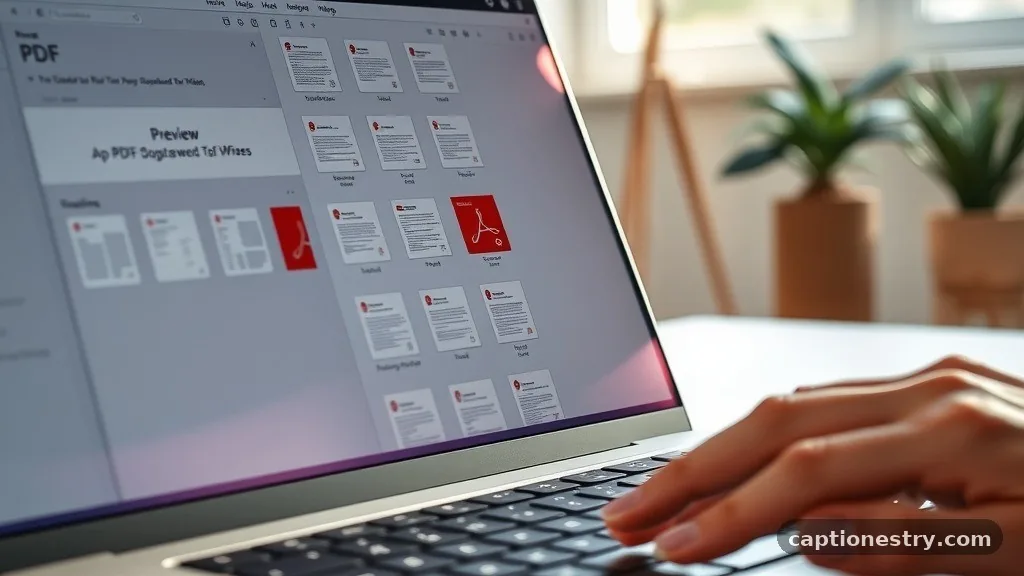
Managing sensitive documentation requires a cautious approach to digital privacy. If you are looking for ways of merging PDF files without uploading online, you are likely prioritizing data security and avoiding the risks associated with third-party servers. Keeping your files local is the most effective way to ensure that confidential information remains strictly on your own hardware.
By using built-in operating system features or trusted, open-source software, you can combine multiple documents in seconds while maintaining complete control over your private data. This approach protects your workflow from potential breaches while ensuring that you have full access to your content even when you are disconnected from the internet.
Utilizing Native Tools on macOS
Apple users have a powerful, built-in solution for document management that requires no third-party installations. The Preview app is a surprisingly robust utility that handles merging PDF files without uploading online with ease. To get started, open the first document you intend to use in Preview.
Once the file is open, ensure the sidebar is visible by clicking the “View” menu and selecting “Thumbnails.” This sidebar is where you will drag and drop additional pages to integrate them into your primary document.
To add more content, simply open the second file in a separate Preview window or locate the file in your Finder. Drag the thumbnail of the second page or the entire document directly into the sidebar of the first open file. You can drop these thumbnails anywhere between existing pages, allowing you to reorder, rotate, or delete sections as needed.
Once the arrangement is exactly how you want it, navigate to the “File” menu and select “Export as PDF.” This creates a brand new, combined document while leaving your original files untouched.
A common mistake here is overwriting your source files. Always use the “Export” function rather than just hitting save, as this ensures your original, separate documents remain available should you ever need them in their original state.
This native method is entirely private because the entire process happens within your computer’s local memory. You never need to connect to a server, making it an ideal workflow for handling sensitive legal, financial, or medical records.
Leveraging PDF24 Creator for Windows
Windows does not have a native PDF editor that is quite as intuitive as macOS Preview, but the free, open-source PDF24 Creator is the gold standard for offline document management. Because it runs entirely on your local machine, it is a perfect tool for merging PDF files without uploading online.
After downloading and installing the software, open the “PDF Creator” module. You will be greeted by a simple interface that allows you to drag and drop your files into the main window.
Once your files are added, you can click and drag them to reorder the sequence. If you need to include only specific pages from a larger document, the software provides a preview mode where you can select only the pages you want to keep.
After you have arranged everything to your satisfaction, simply click the “Merge” button. The software will generate a single, unified document based on your specifications.
The primary benefit of this software is that it is completely ad-free and does not require an active internet connection to function. However, users sometimes forget to check the file size of the final output.
If you are merging several high-resolution scanned documents, the resulting file might be quite large. PDF24 includes built-in compression tools, so take a moment to adjust the output quality settings before finalizing the merge to ensure the file remains easy to share via email or local storage.
Using Command Line Utilities for Advanced Users
If you prefer a more technical approach or need to batch-process dozens of documents, command-line tools offer unmatched efficiency. Tools like PDFtk (PDF Toolkit) allow you to perform complex operations, including merging, splitting, and rotating, through simple text commands. This is arguably the most secure method for merging PDF files without uploading online because it bypasses graphical user interfaces entirely, reducing the chance of background data leakage.
On a Linux or macOS terminal, or using a Windows command prompt, the basic syntax is straightforward. You essentially provide the utility with the names of the input files and a command to output them into one unified file.
For instance, a command might look like pdftk file1.pdf file2.pdf cat output merged.pdf. The program processes the data instantly and saves the result to your designated folder.
The biggest hurdle for most users is the learning curve of the command line. A common mistake is misnaming a file in the command string, which will result in an error message.
Always double-check your file names and ensure they are in the same directory as your terminal session. While this method is less visual, it is incredibly fast and reliable, making it a favorite for developers and power users who handle hundreds of documents as part of their daily routine.
Working with LibreOffice for Document Organization
Many users are surprised to learn that the LibreOffice suite is fully capable of manipulating PDF documents. While it is primarily a word processor, you can use the “Draw” application within the suite to combine files. This is particularly helpful if you want to perform minor edits to the text or images while you are in the process of merging PDF files without uploading online.
To use this method, open LibreOffice Draw and select “File,” then “Open” to import your first PDF. You can then drag additional pages from your file manager directly onto the workspace.
Each page will appear as a separate object that you can move, resize, or annotate. Once you have imported all the pages you need, navigate to “File” and select “Export as PDF.”
This method offers a bit more creative control than simple merging tools, but it can be slower for very large files. A common error is assuming that the PDF will retain all its original formatting perfectly.
Sometimes, complex layers or specific fonts might shift slightly during the import process. If your document contains highly specialized layout elements, always review the final exported file carefully before considering the task complete.
Ensuring Data Privacy and Local Security
When you decide to avoid online services for your document tasks, you are taking a significant step toward digital hygiene. Most online “free” tools generate revenue by analyzing the data you upload, which can be a major risk if your documents contain sensitive personal or company information. By choosing to keep your processes offline, you eliminate the risk of your files being stored on a third-party server, even temporarily.
However, local security is only as strong as your device‘s overall health. Even when you are merging PDF files without uploading online, ensure that your computer is free of malware that could intercept your activities.
Regularly updating your operating system and your chosen PDF software is essential. These updates often contain critical security patches that protect your data from being accessed by unauthorized processes running in the background.
Additionally, consider the destination of your merged files. If you are creating a single, large document, ensure it is stored on an encrypted drive or a secure folder.
If you need to share the file later, consider using password protection, which most of the tools mentioned above allow you to apply during the export process. This adds an extra layer of defense, ensuring that only the intended recipient can open the content you have worked so hard to secure.
Common Troubleshooting and Best Practices
Even with the best tools, you might encounter issues when merging documents. One of the most frequent problems occurs when one or more of your source files are password-protected.
Most offline tools will refuse to merge a file if it is encrypted, as they cannot verify the contents. You must remove the password protection from the individual files before you can successfully combine them into one document.
Another issue is inconsistent page sizes. If you are merging a document that uses standard letter-sized paper with one that uses A4 or legal-sized pages, the final output might look distorted or have awkward margins.
Before merging, try to standardize the orientation and paper size of your source files. If your tool does not support automatic resizing, you may need to convert the pages to images first or use a dedicated editor to normalize the dimensions.
Finally, keep an eye on your file naming conventions. When you are merging multiple files, it is easy to end up with a folder full of “merged_final_v2_final.pdf” documents. Establish a clear naming system before you start.
This prevents confusion later and ensures that you always know which document is the most recent version. Taking these small, disciplined steps makes your document management workflow much more efficient and less prone to frustrating errors over the long term.
Frequently Asked Questions
Is it truly possible to merge files without an internet connection?
Yes, you can absolutely merge files offline. Because the actual process of reading page data and stitching it together happens in your computer’s RAM and processor, no external servers are required. As long as you have the necessary software installed on your device, you can remain completely disconnected from the network while you work.
Will I lose any quality when merging documents offline?
If you use the right tools, there should be no loss of quality. When you use software like PDF24 or macOS Preview, the application keeps the original image and text data intact. However, if you choose to “compress” or “optimize” the file during the export process to save space, you may notice a slight reduction in visual clarity.
What is the safest way to merge sensitive financial or legal documents?
The safest way is to use a trusted, open-source application on a machine that is not connected to the internet. By disabling your Wi-Fi or Ethernet connection during the process, you create a “sandbox” environment. This ensures that no background process can accidentally transmit your document data to an external location while you are performing the merge.
Can I merge files on a mobile device without an internet connection?
While it is more difficult than on a desktop, it is possible. On iOS, the “Files” app and the “Shortcuts” app can be configured to merge PDFs locally. On Android, certain file management apps allow for basic document manipulation. However, due to the limited file system access on mobile devices, desktop computers remain the most reliable environment for this task.
Are there any hidden costs to using these offline tools?
Most of the recommended offline tools, such as the built-in macOS Preview or open-source software like PDF24, are entirely free. Because they do not rely on a subscription-based cloud service, you do not need to worry about monthly fees or data usage limits. They are designed to be permanent, cost-effective solutions for your local document management needs.
Final Thoughts
Securing your sensitive information starts with how you handle your digital assets. By mastering the process of merging PDF files without uploading online, you protect your data from unnecessary exposure and maintain full control over your workflow. Whether you use the native utilities built into your operating system or reliable, open-source software, the result is the same: a streamlined, private, and efficient way to manage your documentation.
Take a few minutes today to test these methods with a few sample files to see which tool fits your personal workflow best. Once you are comfortable with the steps, you will find that managing your documents locally is just as fast as using an online service, but with the added peace of mind that your files stay exactly where they belong—on your own device. If you run into specific issues or find a tool that works exceptionally well for your needs, feel free to share your experience with others to help them secure their digital workspace.

I am Ethan Miles, a digital creator and caption enthusiast who loves turning simple moments into powerful words. I specialize in crafting creative, trendy, and engaging captions that help your posts stand out. At Captionestry, I focus on delivering fresh ideas, relatable expressions, and scroll-stopping content for every mood and moment. I’m passionate about social media culture, photography, and the art of storytelling through short, impactful lines.