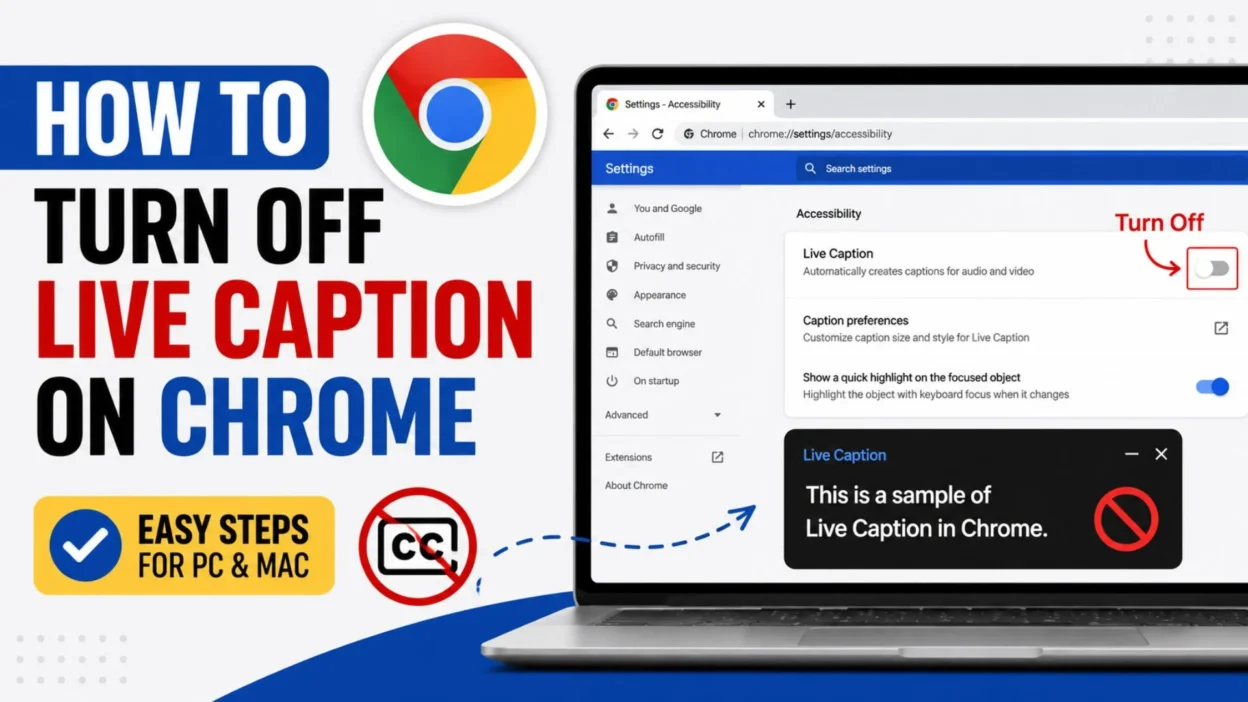
If you are searching for how to turn off Live Caption on Chrome, the good news is that the setting is easy to manage. You can disable it through Chrome’s accessibility settings without changing your browser’s other features.
This guide explains the simplest way to turn Live Caption off. It also covers what to check if captions continue appearing after you disable the feature. The steps are designed to be clear, quick, and easy to follow.
What Is Live Caption in Chrome?
Live Caption is an accessibility feature that automatically creates captions for spoken audio playing through supported content. It can appear when you watch videos, listen to audio, or use other media in Chrome.
The feature can be helpful when you need to follow speech without relying entirely on sound. Still, some users prefer a cleaner screen.
If you do not need automatic captions, turning the feature off can remove the caption box from your browser.
How to Turn Off Live Caption on Chrome
The quickest method is through Chrome’s Settings menu. You do not need to change your video player or reinstall Chrome.
Open Chrome Settings
Start by opening Google Chrome on your computer.
Then select the three-dot menu in the upper-right corner of the browser. Choose Settings from the menu.
Open Accessibility Settings
Once Chrome Settings opens, look through the available sections for Accessibility.
Chrome places several features designed to make browsing easier in this area.
Disable Live Caption
Find the Live Caption option.
If the feature is enabled, use the available switch to turn it off. Once disabled, Chrome should stop generating Live Caption text for supported audio.
The setting normally takes effect immediately, so you should not need to restart the browser.
Turn Off Live Caption Through Chrome’s Accessibility Page
There is another simple route if you prefer using Chrome’s settings search.
Open Chrome and go to Settings. Then use the settings search box and type Live Caption.
Chrome should display the related setting. Open the result and switch Live Caption off.
This method can save time when you cannot immediately find the accessibility section.
How to Stop Live Captions From Appearing During Videos
If captions appear while watching videos, the browser setting is one of the first things to check.
Live Caption can work independently of the captions offered by some websites or video players. That means turning off Chrome’s Live Caption may not remove captions that are controlled directly by the website.
If text remains after disabling Chrome’s feature, check the video player’s own caption or subtitle button.
For example, look for options such as:
• CC or Closed Captions 🎬 • Subtitles in the video settings ⚙️ • Captions in the media controls 📺 • An accessibility option provided by the website 🔧
If the website’s own captions are enabled, turn them off separately.
Chrome Live Caption vs Website Captions
It is useful to understand the difference between these two features.
Chrome Live Caption is controlled by the browser. It can generate captions for supported audio.
Website captions are controlled by the individual website or media player. A video may have its own subtitles even when Chrome Live Caption is completely disabled.
This difference explains why captions sometimes remain visible after you turn off Live Caption.
If the text is part of the video player, use the player’s caption controls instead of Chrome Settings.
How to Turn Off Live Caption on Chrome Quickly
If you only want the basic process, the steps are straightforward.
• Open Google Chrome. 🌐 • Select the three-dot menu. ⋮ • Open Settings. ⚙️ • Go to Accessibility. ♿ • Find Live Caption. 📝 • Switch the feature off. ✅
After completing these steps, check a video or audio source to confirm that the Live Caption overlay has disappeared.
What to Do If Live Caption Is Still Showing
Sometimes the text on your screen is not coming from Chrome’s Live Caption feature. Before changing more browser settings, identify where the captions are coming from.
First, check whether the captions appear on every website or only one website. If they appear on only one video platform, the website may have its own caption system.
Next, check the video player’s controls. A CC button is a common sign that the captions are controlled by the player.
You can also close and reopen the media content after changing Chrome’s setting. This can help confirm whether the browser setting has taken effect.
Check Chrome’s Accessibility Settings Again
If you disabled Live Caption but it continues to appear, return to Chrome’s accessibility settings.
Look for the Live Caption option and confirm that it is actually switched off.
A quick second check can help rule out a setting change that was not saved or a different accessibility feature being responsible for the text.
Avoid changing unrelated accessibility options unless you know they are causing the issue.
Restart Chrome After Changing the Setting
Most Chrome settings apply without a restart. However, restarting the browser can be a useful troubleshooting step if an overlay remains visible.
Close your Chrome windows and open the browser again.
Then play the same audio or video and check whether Live Caption appears.
Restarting is especially useful when Chrome has been open for a long time or several media tabs are running.
Update Chrome If the Setting Looks Different
Chrome’s interface can change over time. You may notice that a setting appears in a slightly different location after an update.
If you cannot find the Live Caption option where expected, use Chrome Settings search.
Type Live Caption into the search field. This is often faster than checking each settings category manually.
Keeping Chrome updated can also help when a feature behaves unexpectedly.
Does Turning Off Live Caption Disable Other Captions?
No. Turning off Chrome’s Live Caption feature does not necessarily disable captions provided by websites.
For example, a streaming service or video platform may have its own subtitle system. Those captions can continue working independently.
If you want to remove all visible subtitles from a particular video, check both Chrome’s Live Caption setting and the video’s own caption controls.
Can You Turn Live Caption Back On Later?
Yes. You can enable Live Caption again whenever you need it.
Simply return to Chrome’s accessibility settings and switch the feature back on.
This can be useful if you sometimes prefer captions and sometimes want a clean screen. You do not need to reset Chrome or change your other browser preferences.
Why Some People Prefer to Disable Live Caption
Live Caption is designed to improve access to spoken audio, but not everyone needs it.
Some people may find the floating caption box distracting during videos. Others may prefer the original subtitles provided by the website.
Turning the feature off can also make the screen feel less crowded when captions are unnecessary.
The important point is that you can choose whether the feature is active based on your needs.
How to Turn Off Live Caption on Different Devices
Chrome’s Live Caption experience can vary depending on the operating system and Chrome version.
On a desktop computer, Chrome’s Settings menu is the main place to check the browser feature.
If you are using a Chromebook, some accessibility controls may also be available through the system’s settings.
Because Chrome and operating systems receive updates, the exact menu wording can change. When in doubt, search for Live Caption inside Chrome Settings.
Common Problems When Disabling Live Caption
A few common situations can make it seem like Live Caption is still active.
Captions Only Appear on One Website
The website may have its own subtitle feature. Check the media player’s controls.
Captions Appear Everywhere
Check Chrome’s Live Caption setting again. Make sure the switch is disabled.
The Setting Is Hard to Find
Use Chrome Settings search and enter Live Caption.
Captions Remain After Disabling It
Close the media tab or restart Chrome. Then test the content again.
Text Is Part of the Video
Some videos contain captions directly inside the video image. Browser settings cannot remove text that has already been added to the video itself.
Tips for Managing Captions in Chrome
You can make caption management easier by knowing which feature controls the text you see.
• Check Chrome settings when captions appear across different sites. 🔍 • Check the video player when captions appear on one particular service. 🎥 • Use Chrome Settings search if you cannot find accessibility options. ⚙️ • Restart Chrome when a setting appears not to take effect. 🔄 • Remember that captions embedded directly in a video cannot be removed through Chrome. 📺 • Turn Live Caption back on whenever you need automatic captions. 📝
Frequently Asked Questions About How to Turn Off Live Caption on Chrome
Where do I turn off Live Caption in Chrome?
Open Chrome Settings and look for the Accessibility section. Find Live Caption and switch it off.
Why is Chrome showing captions automatically?
Chrome may have Live Caption enabled. The feature can automatically generate captions for supported spoken audio.
How do I turn off Live Caption without removing other Chrome settings?
Disable only the Live Caption option in Chrome’s accessibility settings. You do not need to reset the browser.
Why are captions still showing after I turn off Live Caption?
The captions may belong to the website or video player rather than Chrome. Check the video’s CC or subtitle controls.
Can I turn Live Caption back on?
Yes. Return to Chrome’s accessibility settings and enable the Live Caption option again.
Does Live Caption work on every video?
Its behavior depends on the content, browser version, and supported audio. Some websites may also provide their own caption systems.
Can I disable captions on just one website?
Chrome’s Live Caption setting controls the browser feature. If you want to change captions on one website, use that site’s own subtitle or caption controls when available.
Why can I not find Live Caption in Chrome Settings?
Chrome’s menus can change between versions. Use the Settings search box and search for Live Caption.
Do I need to restart Chrome after turning Live Caption off?
Usually, the change should apply without restarting. If captions remain visible, closing the media tab or restarting Chrome can help confirm the change.
Can Chrome remove captions that are part of a video?
No. If text is permanently embedded into the video itself, Chrome cannot remove it. Only captions generated or controlled by the browser or media player can normally be disabled through their settings.
Conclusion
Learning how to turn off Live Caption on Chrome is simple once you know where the setting is located. In most cases, you can open Chrome Settings, find the Accessibility options, locate Live Caption, and switch it off.
If captions continue appearing, do not assume the browser setting failed. The text may come from the website’s own video player, or it may already be part of the video itself. Checking the source of the captions is the easiest way to find the right solution.
Chrome also lets you turn Live Caption back on later, so you can use the feature whenever automatic captions are helpful. If the menu looks different on your version of Chrome, use the Settings search box to look for “Live Caption.” This keeps the process quick and avoids changing unrelated browser settings.

I am Ethan Miles, a digital creator and caption enthusiast who loves turning simple moments into powerful words. I specialize in crafting creative, trendy, and engaging captions that help your posts stand out. At Captionestry, I focus on delivering fresh ideas, relatable expressions, and scroll-stopping content for every mood and moment. I’m passionate about social media culture, photography, and the art of storytelling through short, impactful lines.